Action Flow Step Types
Control which Action Flow step types are allowed in your environment. This is useful when you want to limit what your team can build - for example, restricting which steps content editors are allowed to use, or ensuring only approved integrations are used in production.
How it works
Only workbench members with Edit permission on the environment can change these settings. See Permissions for more information.
By default, all step types are enabled. When you disable a step type:
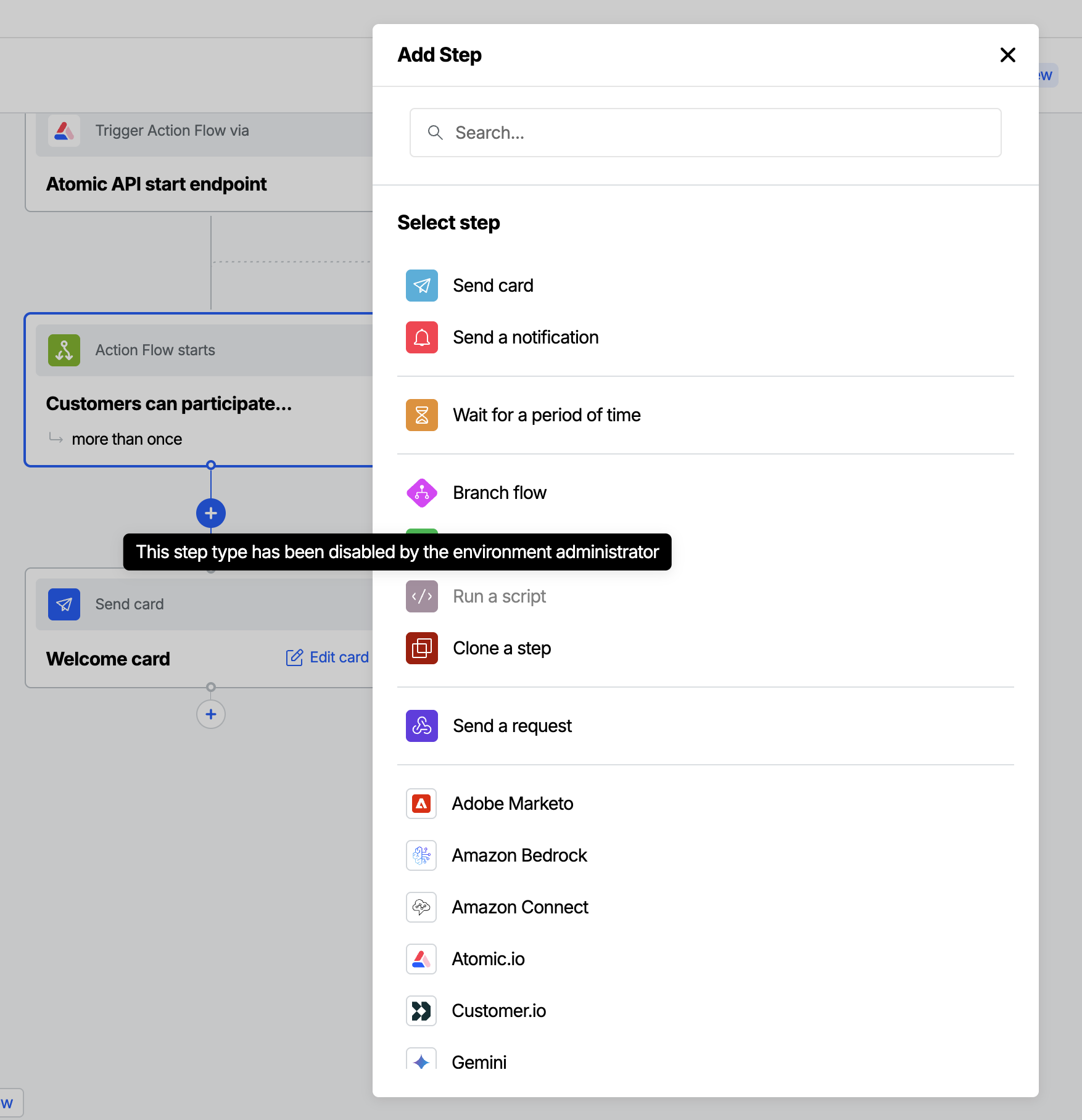
- It appears grayed out in the step picker when building an Action Flow, with a tooltip explaining that it has been disabled by the environment administrator
- Any team member who tries to publish an Action Flow that already contains a disabled step type will be blocked until that step is removed or replaced
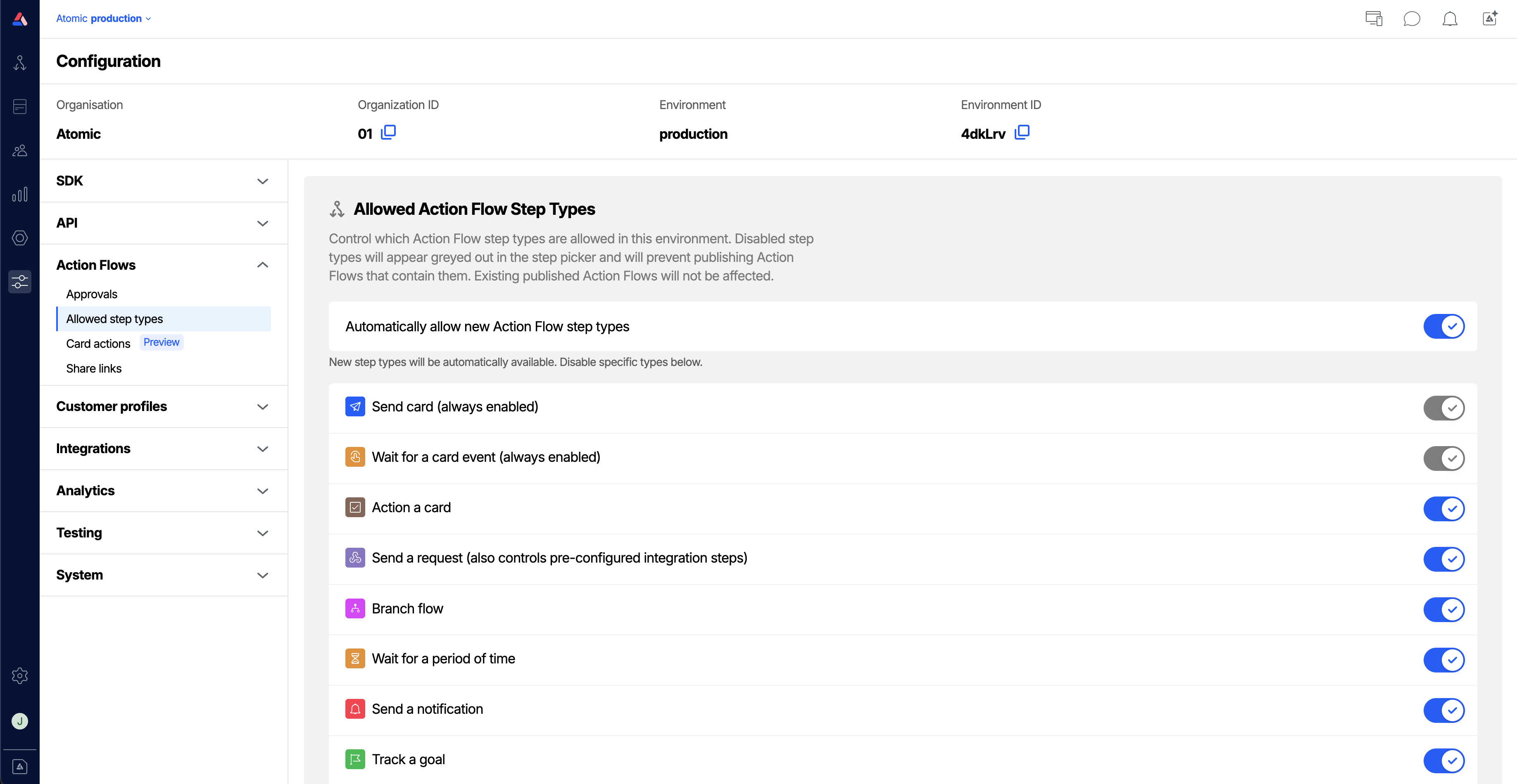
You can also opt to disable any new step types that Atomic may add in future by default. When "Automatically allow new Action Flow step types" is disabled, you will need to opt-in to new step types when they are introduced.
The "Send card" and "Wait for card event" cannot be disabled. These are the core functionality of the Atomic platform.
Disabling a step type does not affect Action Flows that have already been published. Only new drafts and new publishes are affected.
Disabling a step type
- In the Workbench, go to Configuration > Action Flows > Allowed step types
- Toggle off any step types you'd like to disable for this environment
- Click Update to save your changes
Disabling "Send a request" also disables pre-configured integration steps. Pre-configured integrations (such as Slack, Notion, and Google Sheets) are built on top of the "Send a request" step. If "Send a request" is disabled, all pre-configured integrations will also be unavailable in the step picker.
Example use cases
Restricting API access for non-technical teams
If your Action Flows are managed by a mix of technical and non-technical staff, you may want to disable the Send a request step for environments used by content editors or marketers. This prevents unintended calls to external APIs while still letting them build Action Flows with cards, notifications, and wait steps.
Enforcing a simpler flow structure
For organizations just getting started with Action Flows, disabling advanced step types like Branch flow, Run a script, or Stop the Action Flow can simplify the step picker and reduce the risk of misconfigured Action Flows during the early stages of adoption.
Locking down production environments
In environments where only approved, tested Action Flows should be deployed, you can disable step types that introduce complexity or risk - keeping the available toolset tightly scoped and predictable.
Frequently asked questions
Does disabling a step type remove it from Action Flows that are already published?
No. Existing published Action Flows are not affected. Disabling a step type only prevents it from being added to new Action Flows, and blocks publishing of any draft that already contains that step type.
What happens if a team member tries to publish an Action Flow that contains a disabled step?
The publish will be blocked. The team member will need to remove the disabled step type from their draft before they can publish.
Can I see which step types are currently disabled?
Yes — the Action Flow Step Types configuration page always shows the current state of all step types for your environment. Any step type showing as toggled off is currently disabled. The step picker in the Action Flow editor shows disabled steps as grayed out.
Can different environments have different step type settings?
Yes. Step type settings are configured per environment, so you can have different restrictions in your staging and production environments.
Who can change step type settings?
Only workbench members with Edit permission on the environment. Members with View permission can see the settings but cannot change them.
Related
- AI features - toggle Atomic's AI capabilities and track Atomic AI token usage
- Action Flow Steps Reference - full documentation for each step type
- Publishing Action Flows
- Permissions