User Experiments
User experiments are a premium feature and in beta and may be subject to change. Please contact us to have this feature enabled in your organization or to provide feedback.
Test different versions of your Action Cards with built-in A/B testing to discover what works best for your users.
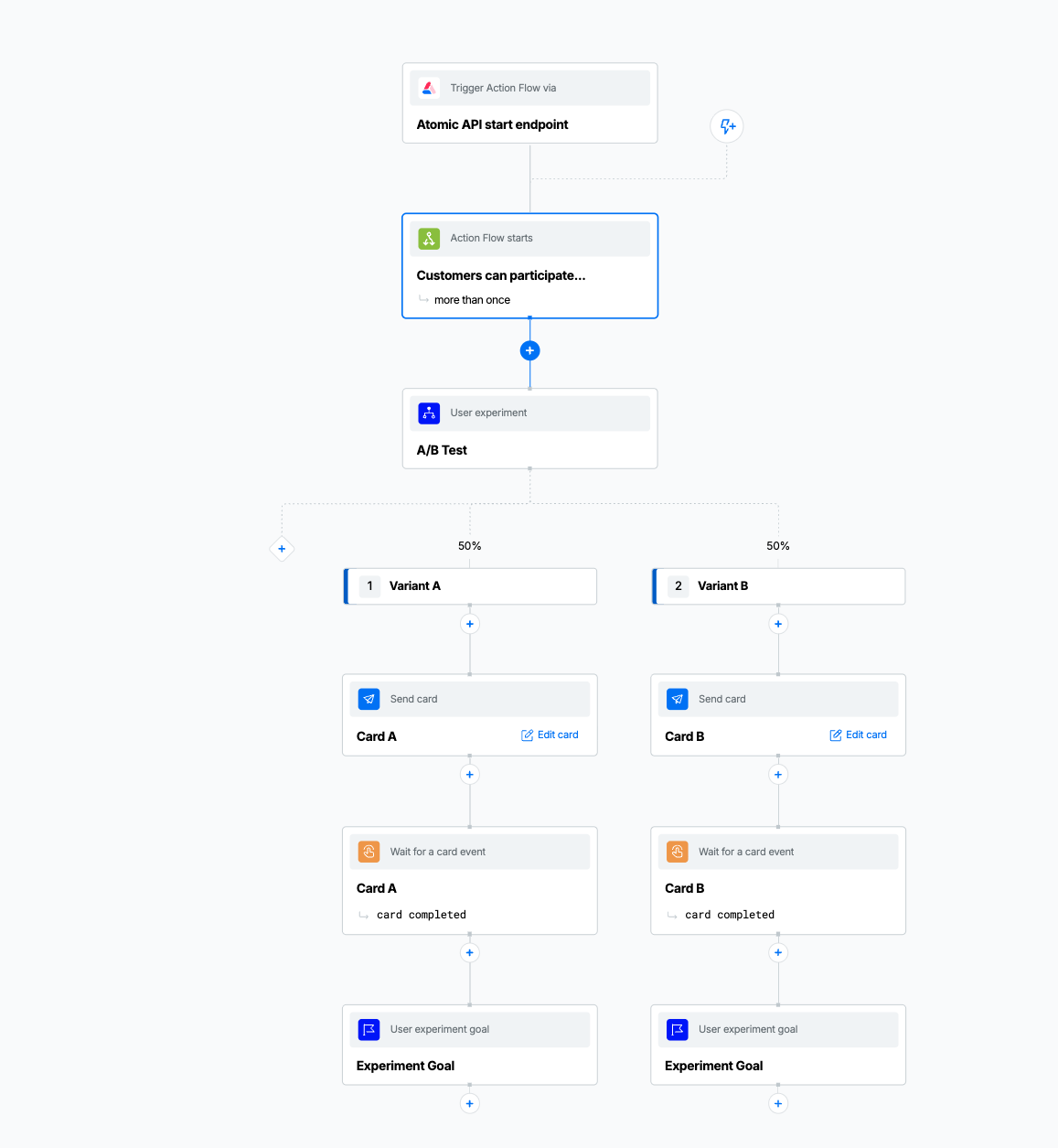
User Experiment step testing two different card designs
What are User Experiments?
User Experiments let you test different versions of your Action Cards to see which performs better. When users encounter a User Experiment step in your Action Flow, they're automatically and randomly assigned to see one of your test variants. You can then measure which variant drives more engagement, conversions, or other goals you want to achieve.
Common examples include testing:
- Different card headlines or messaging
- Various call-to-action buttons
- Alternative card designs or layouts
- Different promotional offers
- Varying content lengths
How User Experiments Work
User Experiments use two types of steps in your Action Flow:
- User Experiment step - Splits users into different test groups (variants)
- User Experiment goal step - Measures when users complete your desired action
Example Use Cases
Home Loan Renewal Test two different cards prompting customer to renew their home loan with different copy or call-to-action, to see which leads to more renewals being completed.
Onboarding Optimization Compare a detailed welcome card versus a simple welcome card to see which leads to more users completing their profile setup.
Subscription Upgrade Test different messaging approaches for encouraging free users to upgrade to a paid subscription.
Feature Adoption Experiment with different ways of introducing a new feature to see which approach leads to higher adoption rates.
Creating Your First User Experiment
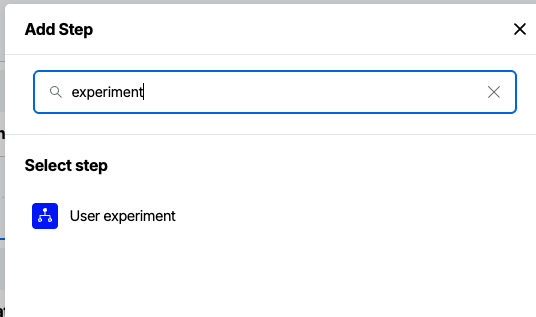
Step 1: Add a User Experiment Step
- In your Action Flow, click the + button where you want to add the experiment
- Select User Experiment from the step menu
- The step will be added to your flow
Step 2: Configure Your Experiment
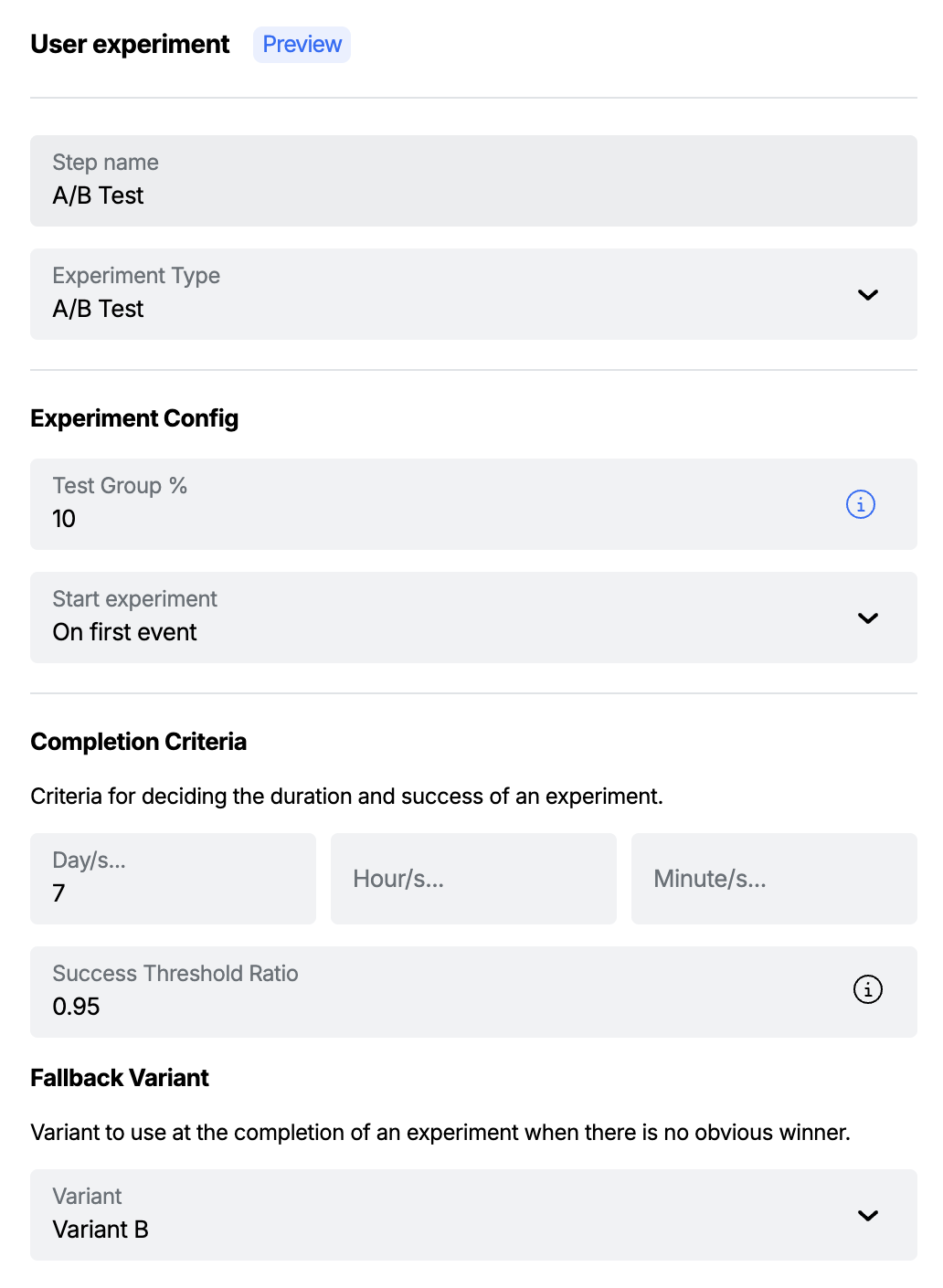
When you select the User Experiment step, the configuration panel will appear on the right side of the screen.
Basic Settings
Description: (Optional) Add a brief description of what you're testing and your hypothesis. This helps you and your team stay focused on the experiment's purpose.
- Example: "Testing whether a shorter headline increases click-through rates"
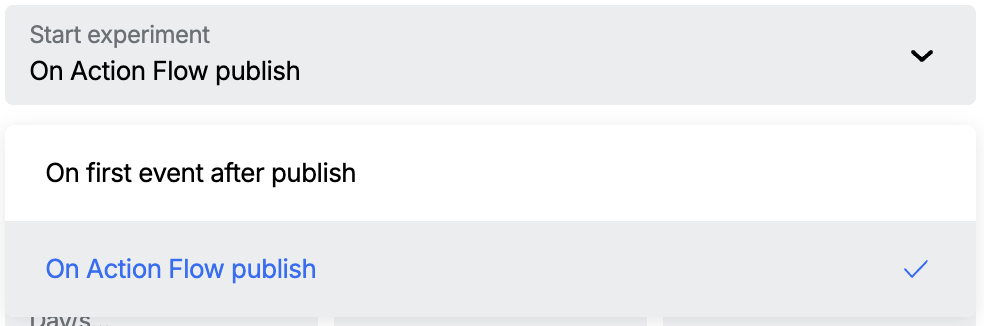
Start Mode: Controls when your experiment begins accepting participants. The configured duration for the experiment will be relative to this start mode.
- On Publish (default): The experiment starts immediately when you publish your Action Flow. This is ideal for testing new flows or when you want consistent experiment timing.
- On Event: The experiment starts when the first user interaction related to the experiment occurs. This can be useful when you want to ensure your experiment only starts when there's actual user activity.
Test Percentage: Choose what percentage of users should participate in your experiment (1-100%).
- Users not included in the experiment will wait until the experiment reaches a conclusion. When the experiment reaches a conclusion these uses will be resumed and sent down the successful variant branch.
- See the sections about Experiment Duration and Success Threshold for more details on completing an experiment.
- We recommend you start with smaller percentages (10-25%) for new experiments

Experiment Duration
Duration: How long should your experiment run?
- Minimum recommended: 7 days for statistical significance. (See References Section to learn more about running experiments)
- Consider your typical user activity patterns
- Longer experiments provide more reliable results
Success Threshold: The confidence level needed to declare a winner (typically 90-95%)
- Higher thresholds reduce false positives but require more data
- 90% is recommended for most experiments
Fallback Variant: The variant to use when the experiment is concluded and no clear winner is found based on the success threshold.
Step 3: Create Your Variants
Your experiment needs at least two variants to compare. Think of these as different versions of the experience you want to test.
There can be at most 4 variants in an experiment.
Adding Variants
- Click Add Variant to create your first test version
- Give your variant a descriptive name (e.g., "Control", "New Design", "Short Copy")
- Set the percentage of experiment participants who should see this variant
- Repeat for additional variants
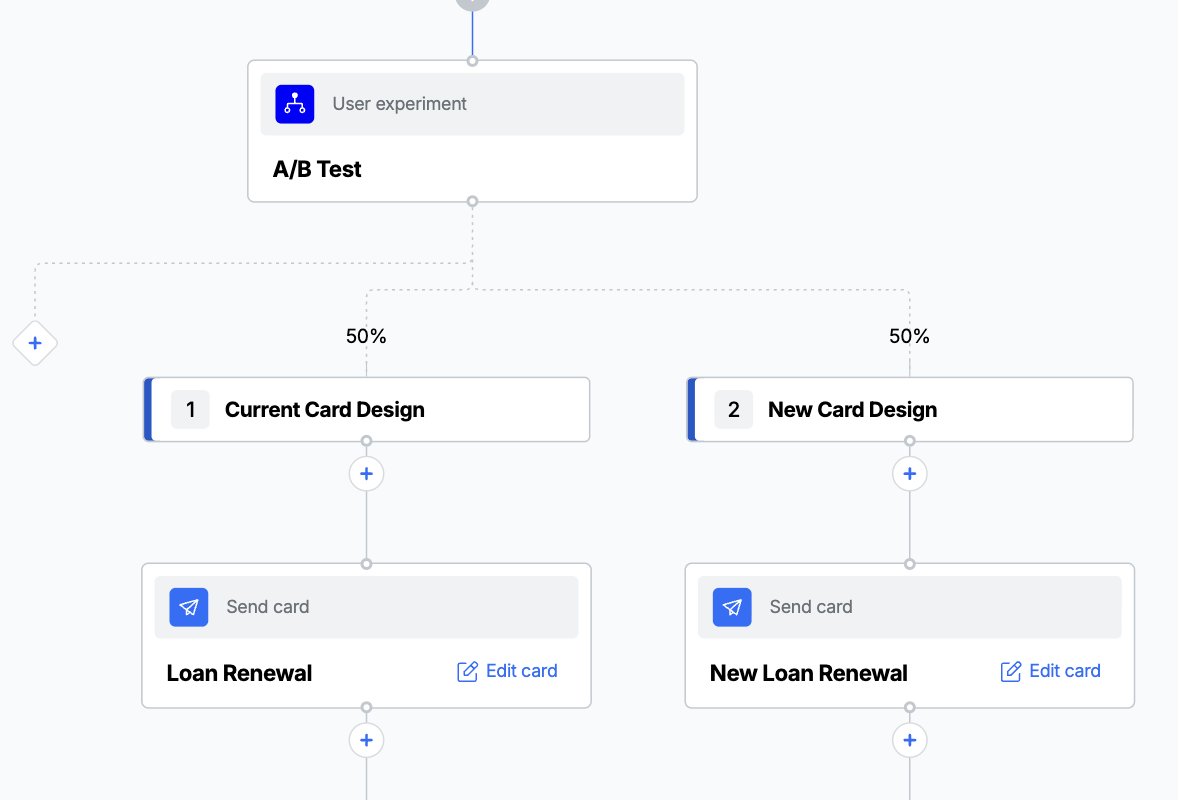
Naming your variants: Use clear, descriptive names that make it easy to remember what each variant tests. Instead of "Variant A" and "Variant B", use names like "Current Design" and "Bold CTA".
Variant Weights
- Weights must add up to 100% across your variant branches
- Weights must be whole numbers
- Equal splits (50/50) are common for A/B tests
- Unequal splits (e.g., 80/20) are useful when testing a risky change
Step 4: Build Each Variant Path
After creating your variants, you'll see separate branches in your Action Flow for each one.
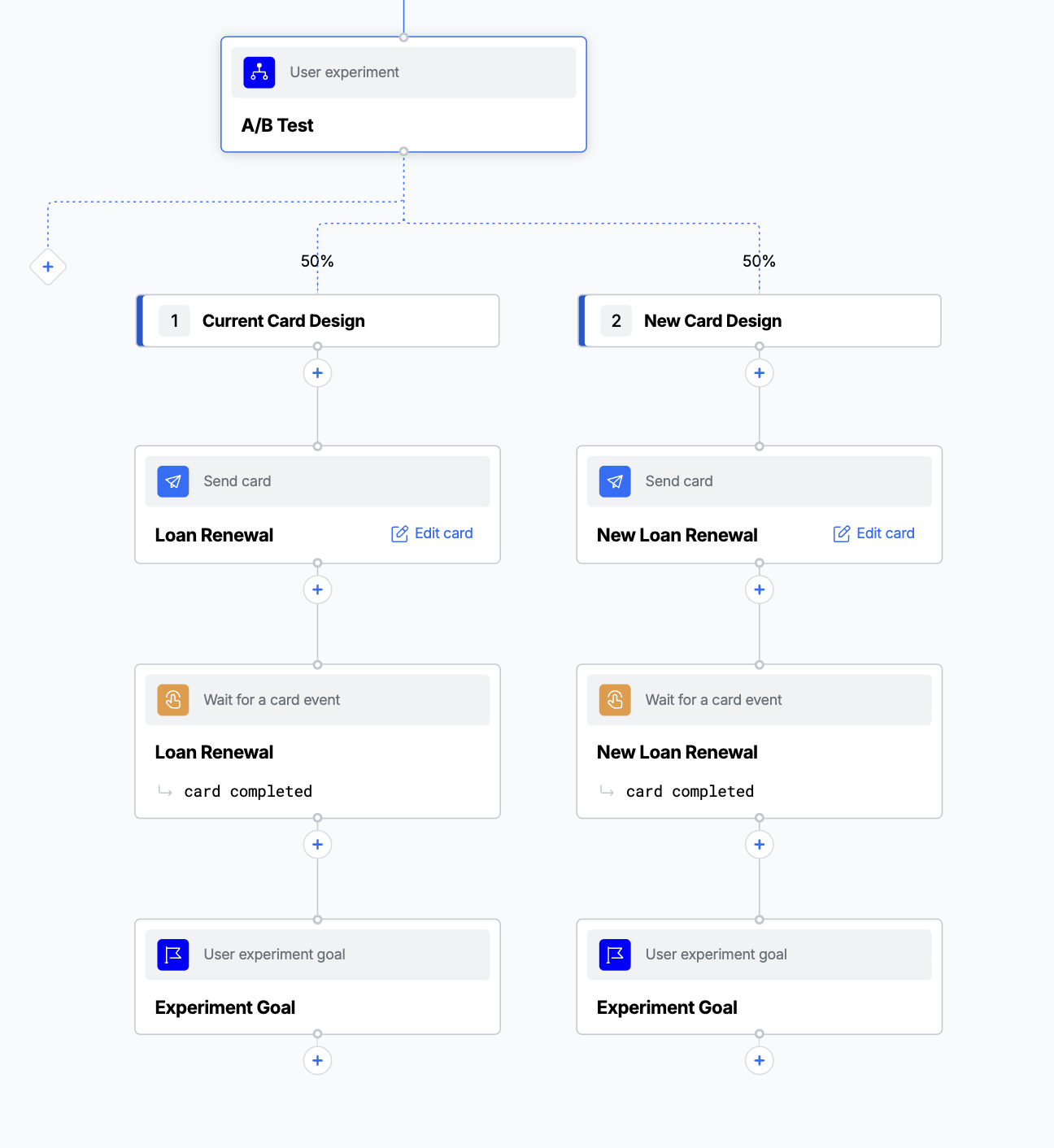
- Click the + button below each variant to add steps
- Create different card templates or configurations for each variant
- Each variant branch must lead to its own User Experiment Goal step
Step 5: Add a User Experiment Goal Step
The User Experiment Goal step measures when users complete your target action (like clicking submit on a card or reaching a certain point in the variant branch) this is based on the step that you place the goal step after - most commonly this will be after a card event listener.
The goal step records "conversions" for measuring experiment success.
The goal step does not have to be the last step in the branch.
Important: Each variant branch must include a path to a User Experiment Goal step. Without this, Atomic can't measure which variant performs better. Publishing will be blocked if a variant branch does not contain a goal step.
Monitoring Your Experiment
Real-time Results
Once your Action Flow is published and users start entering your experiment, you can monitor the results in near real-time.
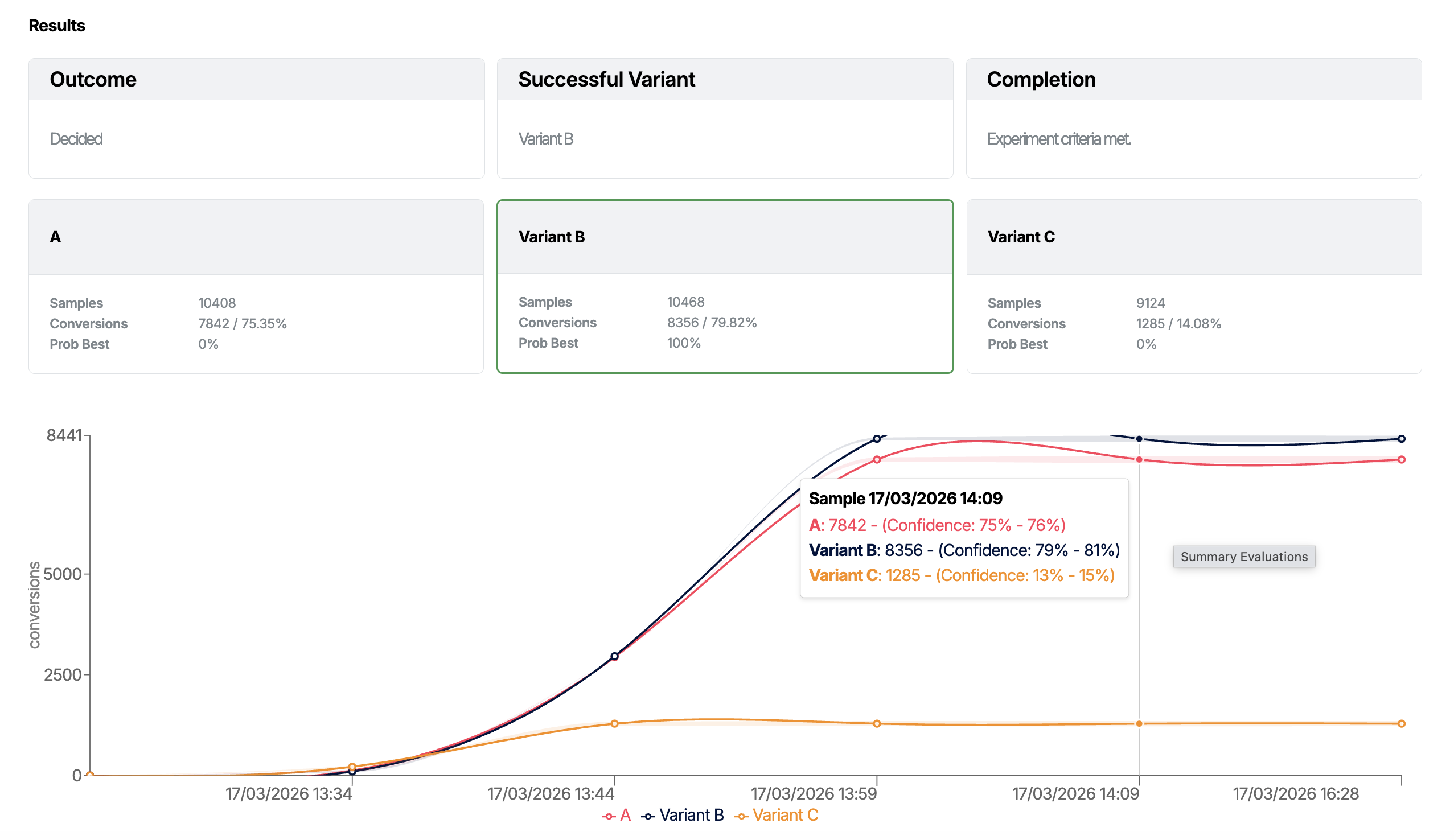
Accessing Results
- Navigate to your Action Flow in the Workbench.
- For an Action Flow version, click on the Experiment tab.
You can view the results for previous versions by using the Action Flow version selector.
Understanding the Results
Experiment Status
- Running: Currently active and collecting data
- Decided: A winner has been determined
- Stopped: Manually ended by you or your team or by a new version of the Action Flow being published
Key Metrics
- Participants: Total users who entered the experiment
- Conversions: Users who completed the goal action
- Conversion Rate: Percentage of participants who converted
- Confidence Level: Statistical confidence in the results
Statistical Analysis
Atomic uses advanced Bayesian statistical analysis to determine:
- Probability of being best: Likelihood this variant performs the best, based on the chosen goal
- Expected performance: Estimated conversion rate with confidence intervals
- Statistical significance: Whether the difference between variants is meaningful
When Results Are Ready
Atomic will automatically analyze your results and determine a winner when:
- Your experiment duration has elapsed
- Enough data has been collected for statistical confidence
- One variant clearly outperforms the others
Winner Selection
- If a clear winner emerges, Atomic will automatically route all future users to the winning variant
- If no variant significantly outperforms others, Atomic will use your selected fallback variant
- The experiment status changes to "Decided"
Managing Active Experiments
Once an experiment starts you can not modify any of the settings. If you need to make a change, you need to create a new version of the Action Flow and publish it.
Stopping an Experiment Early
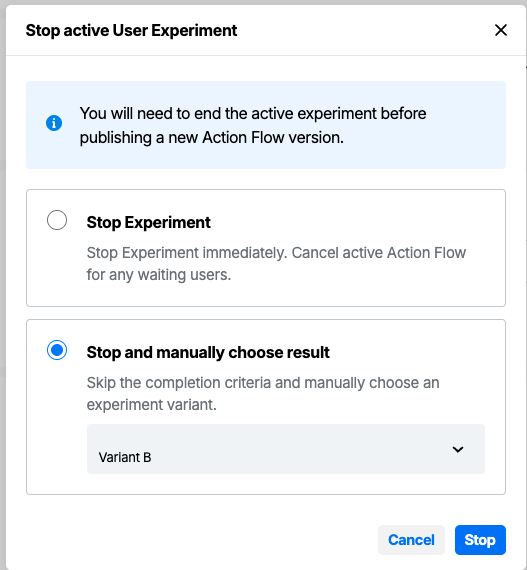
You can manually end an experiment before its scheduled completion:
- Go to your experiment results dashboard
- Click Stop Experiment
- Choose how to handle the stop:
- Stop and keep collecting data: End assignment but finish measuring current participants to automatically choose the best branch based on the available data.
- Stop and choose winner: Manually select which variant should be used going forward and for any users who were "paused" waiting for the chosen route (users not in the participation group).
Best Practices
Before You Start
Define Clear Goals
- Know exactly what you want to measure
- Choose one primary metric to focus on
- Document your hypothesis before starting
Plan Your Variants
- Test meaningful differences, not minor tweaks
- Limit variables - test one change at a time
- Consider your brand guidelines and user experience
Sample Size Considerations
- Start with higher test percentages if your Action Flow has low traffic
- Consider seasonal patterns in your user behavior
- Account for your typical conversion rates
Useful sample size calculator: https://mixpanel.com/platform/experiments/sample-size-calculator/
During Your Experiment
Be Patient
- Let experiments run their full duration when possible
- Avoid making decisions based on early results
- Resist the temptation to peek too often
See the references section for links on running a good experiments.
After Your Experiment
Act on Results
- Implement winning variants in future flows
- Document what you learned for your team
- Share insights across your organization
Plan Your Next Test
- Use learnings to inform future experiments
- Consider testing related elements
- Build a culture of continuous improvement
Troubleshooting
Common Issues
"Not enough users in my experiment"
- Increase your test percentage
- Extend the experiment duration
- Consider if your Action Flow trigger occurs frequently enough
"Results are inconclusive"
- The difference between variants may be too small to detect
- You might need a larger sample size or longer duration
- Consider testing a more significant change
"One variant has no users"
- Check that variant weights add up to 100%
- Verify the Action Flow is published and active
- Ensure your trigger events are working correctly
"Goal step not recording conversions"
- Verify the goal step is reachable
- Check that users actually performed the target action
- Confirm the goal step is properly configured
Getting Help
If you're experiencing technical issues or need help interpreting your results:
- Check the experiment status and any error messages
- Review your Action Flow's activity log for clues
- Contact the Atomic support team with the details of your experiment, including the ID of the Action Flow
Advanced Features
Multi-Variant Testing
You can test more than two variants in an experiment:
- Add up to 4 variants per experiment
- Ensure each variant gets enough users for reliable results
- Consider complexity when interpreting multi-way results
Frequently Asked Questions
Q: How long should I run my experiment? A: Minimum 7 days, but longer is often better. Consider your user activity patterns and aim for statistical significance rather than hitting a specific timeline.
Q: Can I run multiple experiments at once? A: Currently, each Action Flow can contain one User Experiment step. You can run experiments across different Action Flows simultaneously.
Q: What happens to users already in the flow when I stop an experiment? A: Users currently progressing through variant paths will complete their current journey. New users entering the flow will see the winning variant.
Q: Can I restart a stopped experiment? A: No, but you can create a new experiment using insights from the previous test. This ensures clean data and reliable results.
Q: How is the winner determined? A: Atomic uses Bayesian statistical analysis to determine which variant has the highest probability of being truly better, accounting for confidence levels and sample sizes.
Q: What if my experiment shows no difference between variants? A: This is valuable data! It means either variant would work equally well, so you can choose based on other factors like implementation ease or brand fit.
References
Useful references on running successful experiments
- Why reaching and protecting statistical significance is so important in A/B tests
- How Not To Run an A/B Test
- Sample Size Calculator
- A/B Testing 101
Ready to start testing? Create your first Action Flow and add a User Experiment step to discover what resonates best with your users.