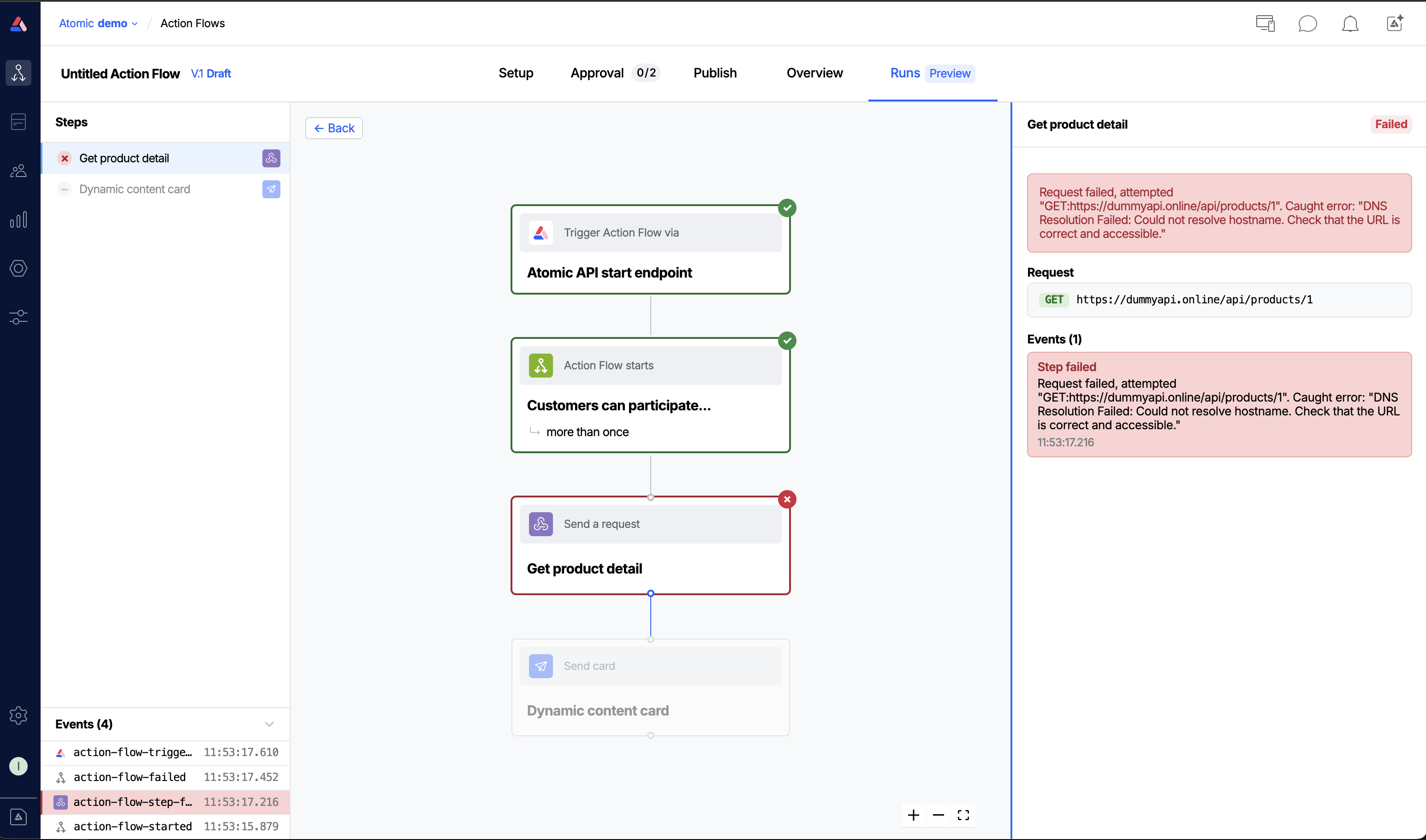
The Action Flow Runs tab
Action Flow Runs tab is in beta and may be subject to change. Please contact us to provide feedback.
The Runs tab helps you investigate how an Action Flow executed for specific customers. It gives you a single place to inspect individual Action Flow instance runs from trigger to completion, including branch decisions, cards, and events.
Use-cases
Tracing a customer outcome
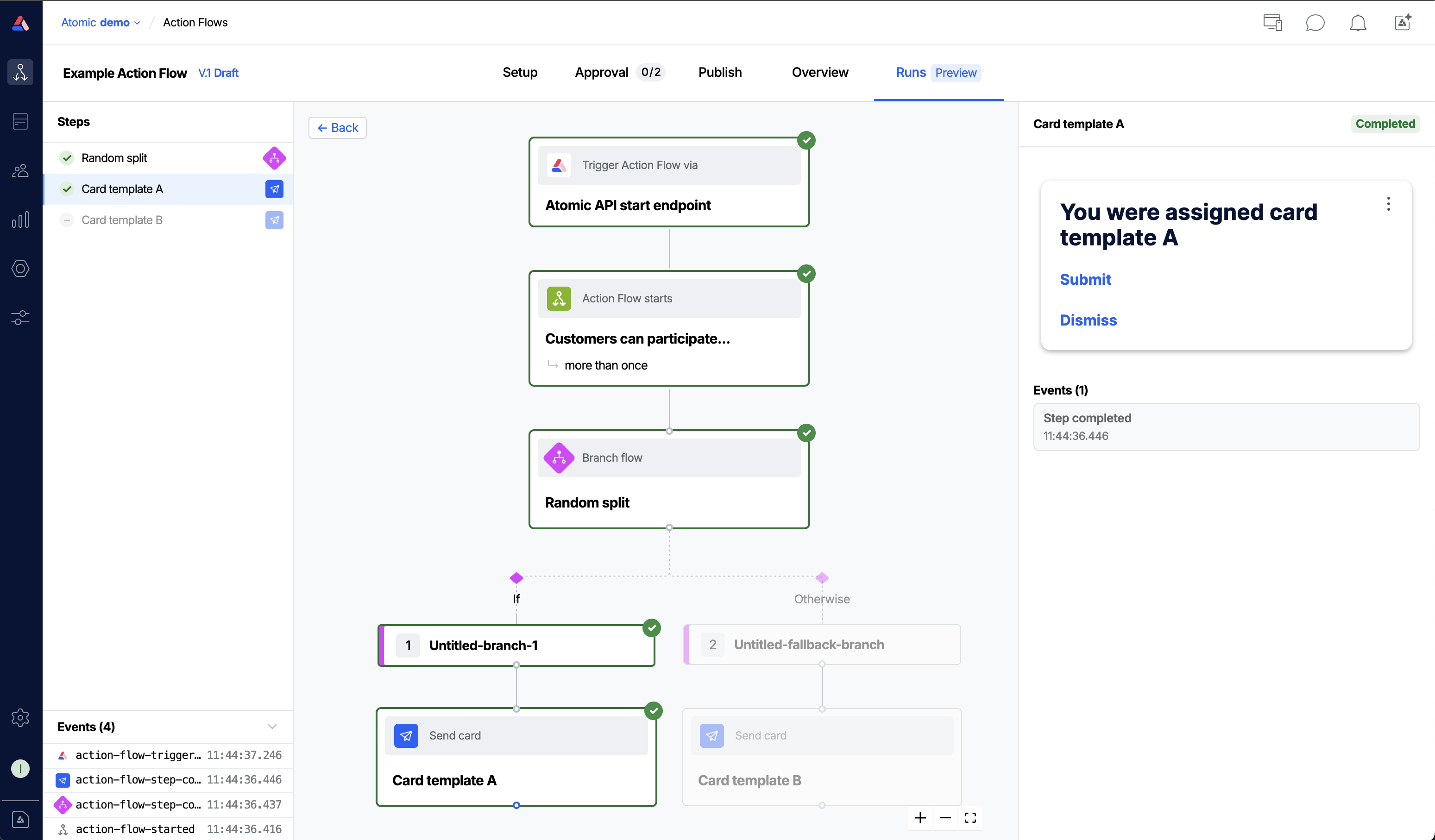
If a customer tells you they received an unexpected card, or did not receive one they expected, open the Action Flow's Runs tab, find their run by and step through the execution to see exactly which path was taken and where cards were sent or withheld.
Validating branch logic
After publishing a new conditional path in an Action Flow, use the Runs tab to confirm that live customers are being routed through the intended branch by checking real run data rather than test assumptions.
Checking variable resolution
When a card contains dynamic content driven by variables or step outputs, open an individual run to inspect the step outputs at each stage and verify that variable values resolved correctly for a specific customer context.
Tracing a run from analytics
If you encounter a flowInstanceId in an analytics event or API response and want to see the full execution context, paste it into the Action Flow instance lookup tool on the Tools page to navigate directly to that run.
Viewing an Action Flow instance
Action Flow instances and the analytics shown are stored based on the data retention settings for your organization. Older instances may not be viewable depending on their age.
From an Action Flow
Open an Action Flow in the Workbench and click the Runs tab in the top navigation bar. The list shows up to 100 of the most recent runs.
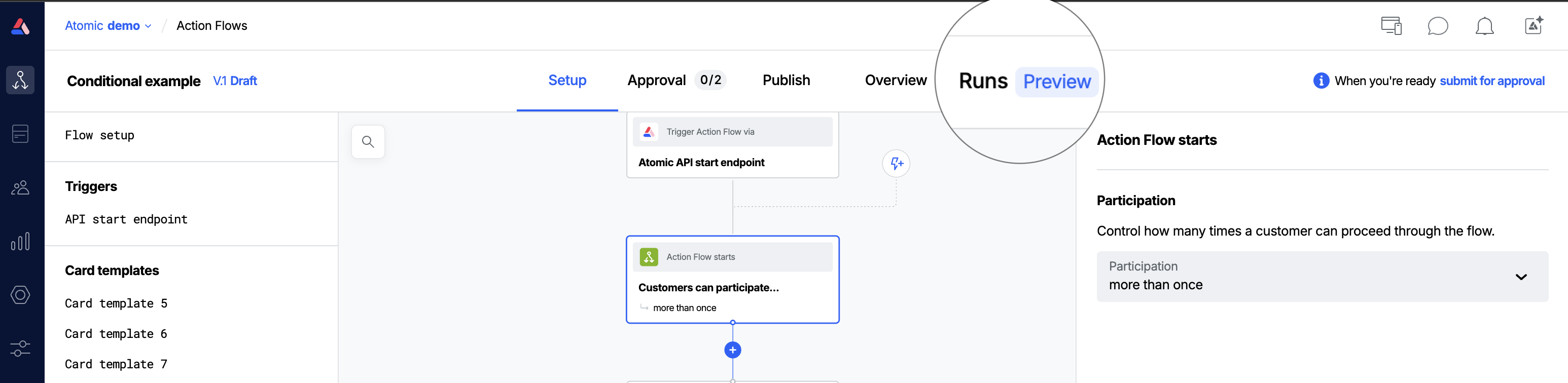
Clicking a row opens the detail view for that run, overlaying the Action Flow graph with step-level execution state, including which steps were evaluated, which branches were taken, and any steps that failed or are waiting.
From the Test Action Flow modal
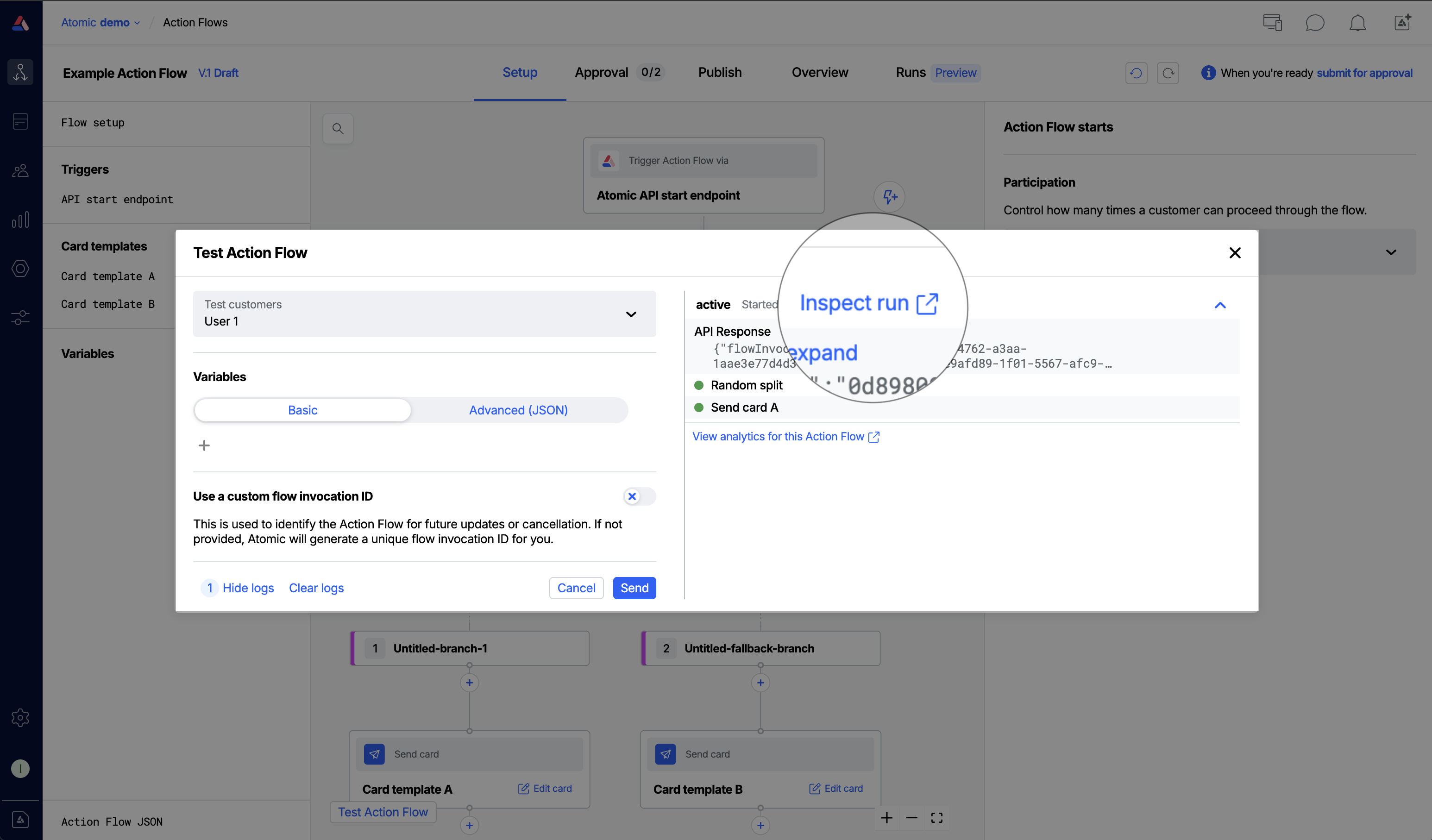
After triggering a test from the Action Flow editor using Test Action Flow button, an Inspect run link appears in the log panel next to each triggered flow instance. Clicking this link opens the run's detail view in a new tab.
From the Tools page
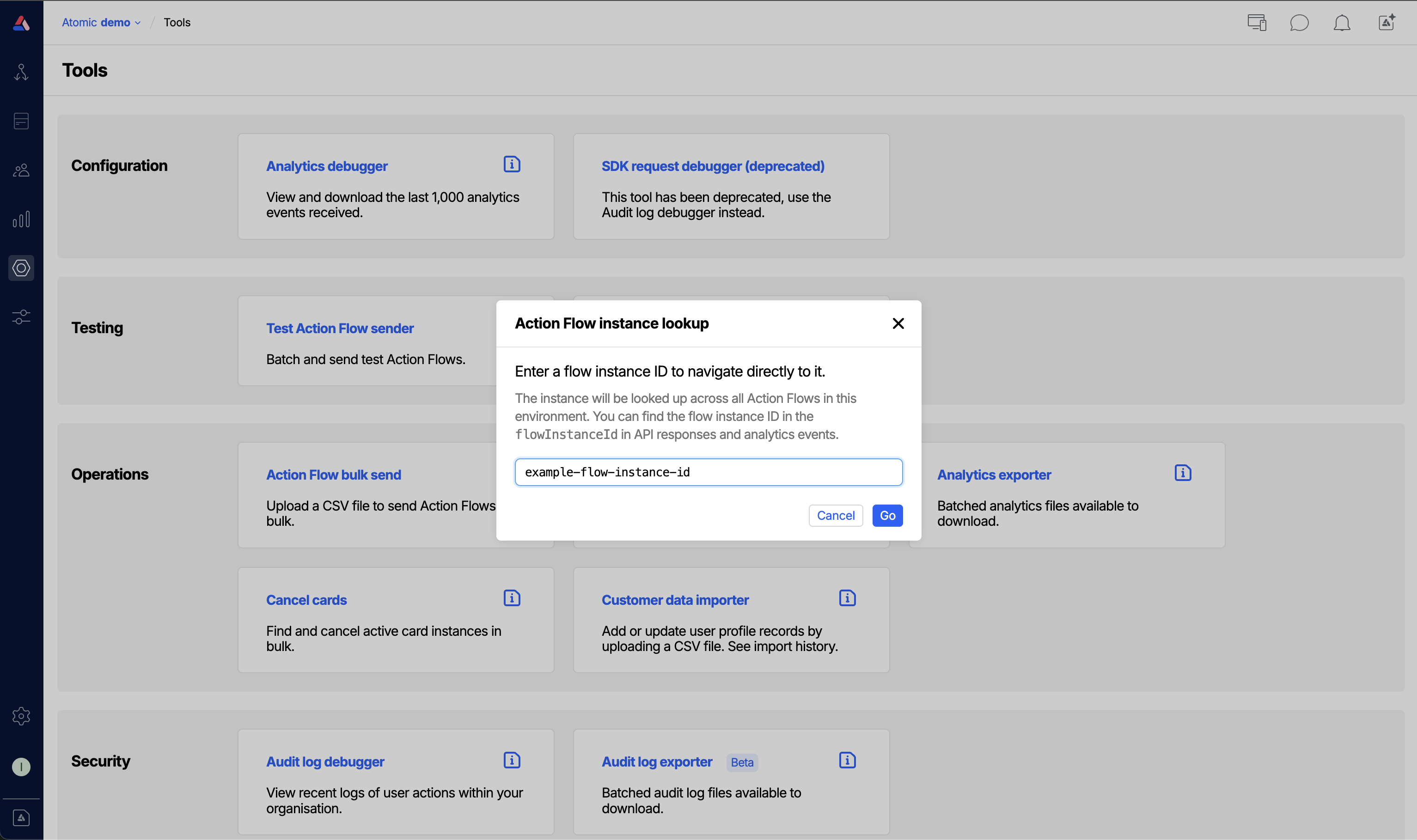
If you have a flowInstanceId, for example from an analytics event or an API response, but you don't know which Action Flow it belongs to, use the Action Flow instance lookup tool:
- Navigate to Tools > Action Flow instance lookup.
- Paste the
flowInstanceIdinto the input field and click Go. - If found, you are taken directly to the run's detail view.
Features
Watching an Action Flow in real-time
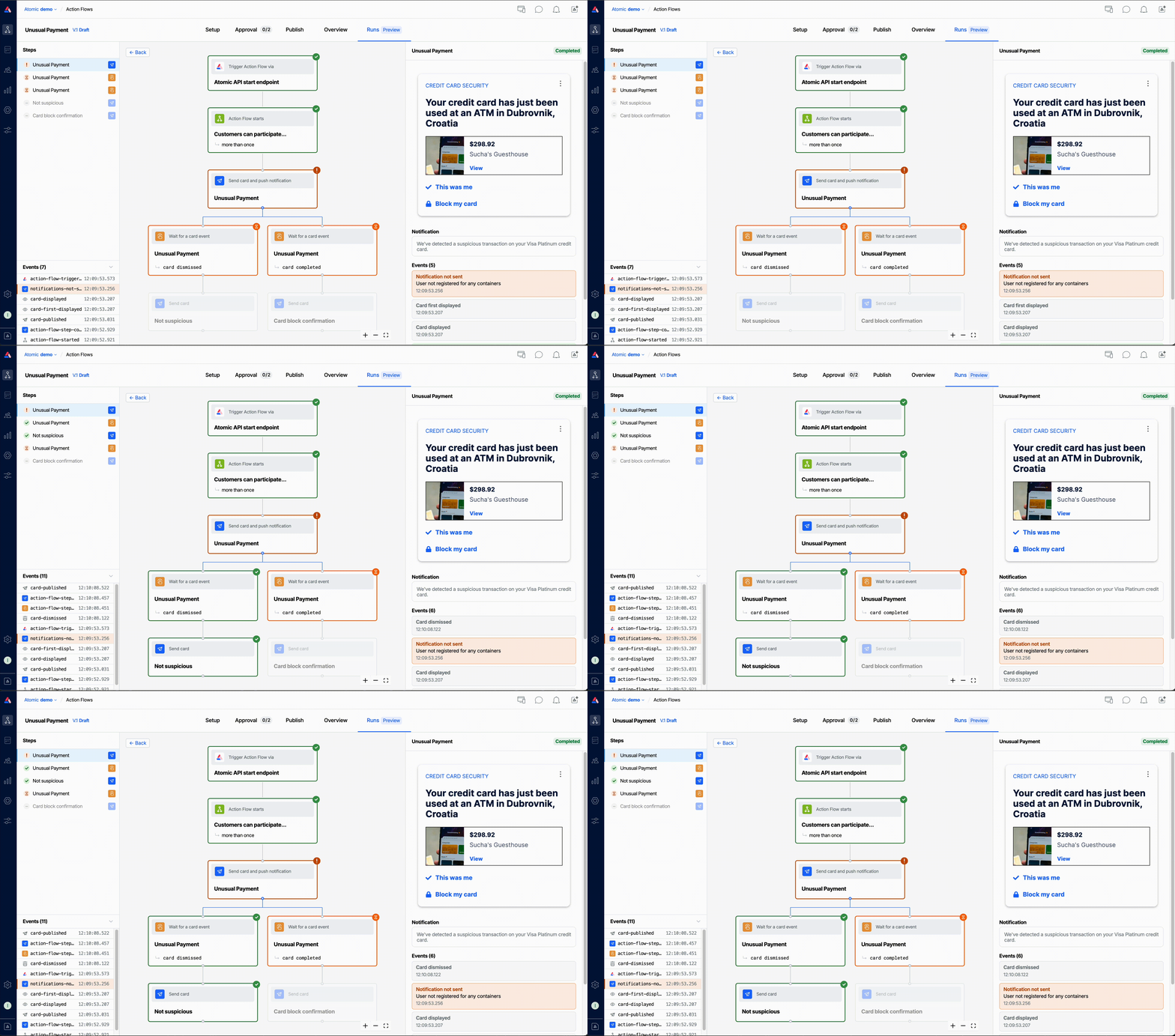
The Runs tab allows you to watch and interact with the step execution of an Action Flow in real-time, allowing you to test how steps are evaluated depending on certain actions taken by the customer.
Any warnings or errors during the step evaluation are highlighted, and analytic events are shown as they are received.
Inspecting conditional branches
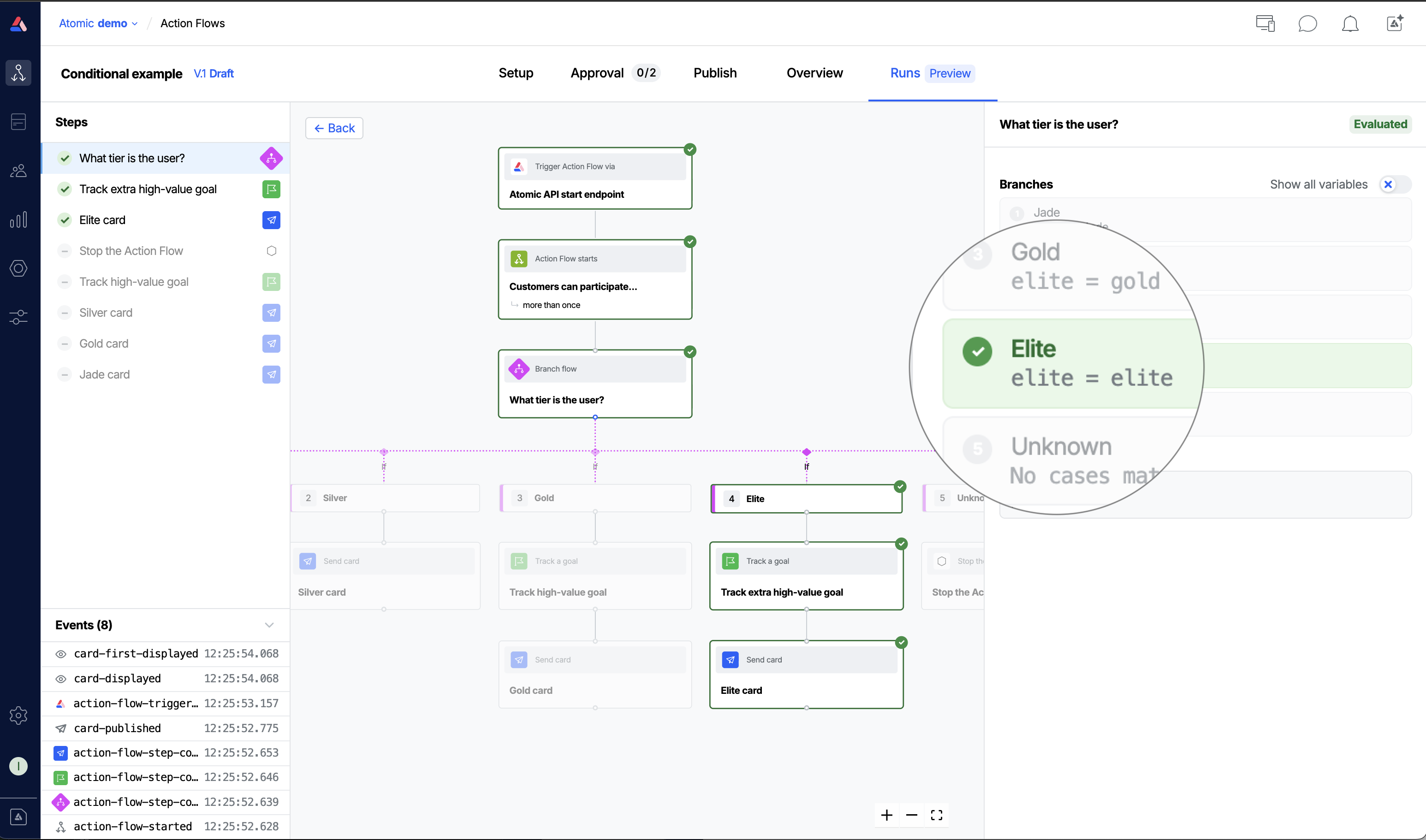
When using Branch Flow steps with a set of conditions, you can view each conditional and how it was evaluated to determine the next step in the Action Flow.
If your condition steps are using variables as part of their comparison, you can switch between showing the variable placeholder, or the actual resolved value of the variable at the time the step was run.
Viewing analytic events
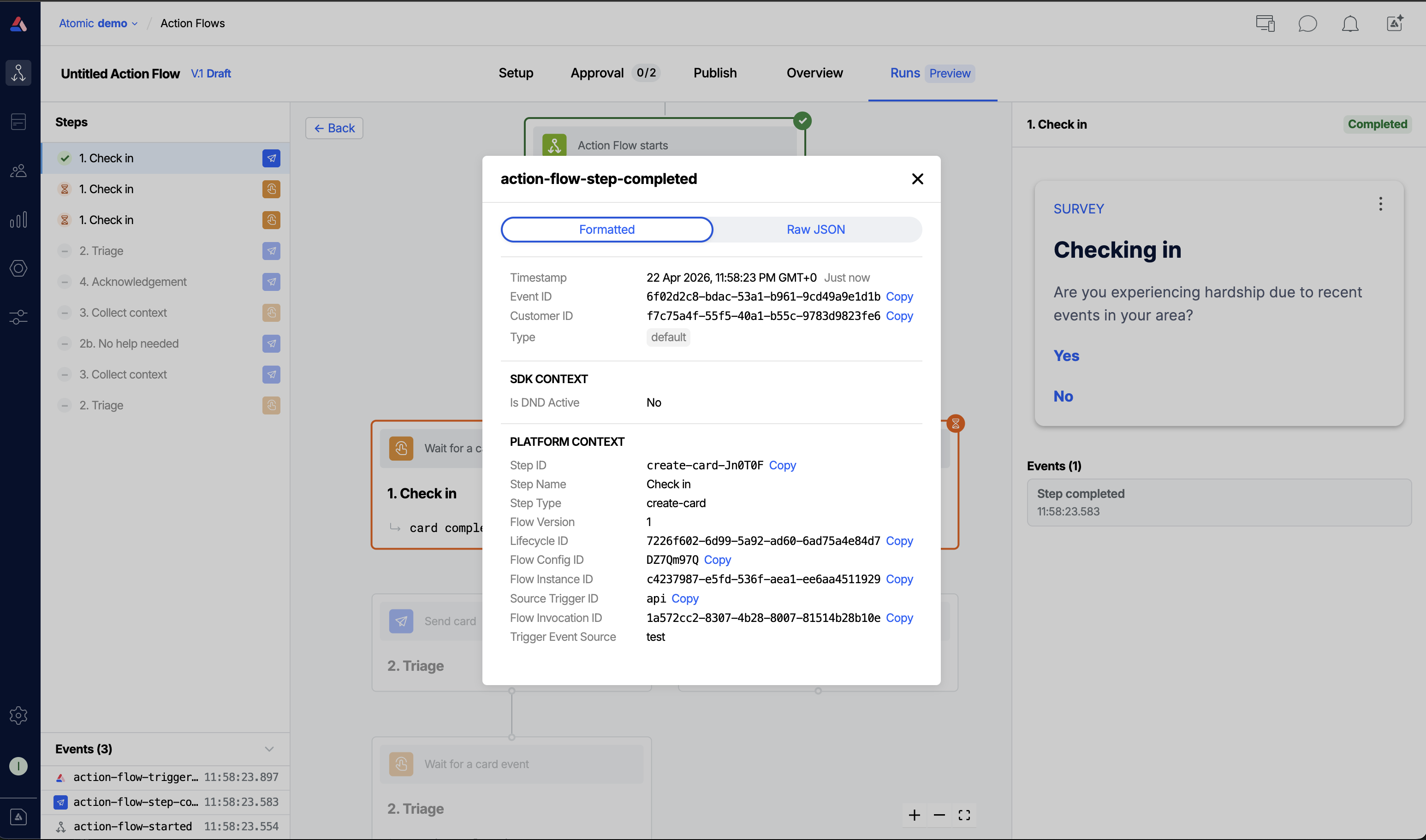
Analytic events that were emitted for your Action Flow instance are shown in the bottom left-hand corner. Clicking on an event shows more information about the event.
For analytic events that correspond to a specific step, these are shown in the right-hand sidebar alongside other information about the step.
Investigating step failures
For steps that fail during the Action Flow, information about the error is shown and grouped with relevant analytic events to help investigate issues with your Action Flow.