Manage events
The Events screen (under Configuration > Analytics > Events) lists the events Atomic knows about in your environment and shows how they are being used to trigger Action Flows. It is split into two sections:
- Custom events: events you send to Atomic from your apps, backend, or third-party systems.
- Atomic events: events generated by the Atomic platform itself, such as when a card is completed.
From this screen you can review each event's properties, remove custom event properties you no longer send, open an event in the Analytics Debugger, and pause or resume the Action Flows an event triggers across the entire environment.
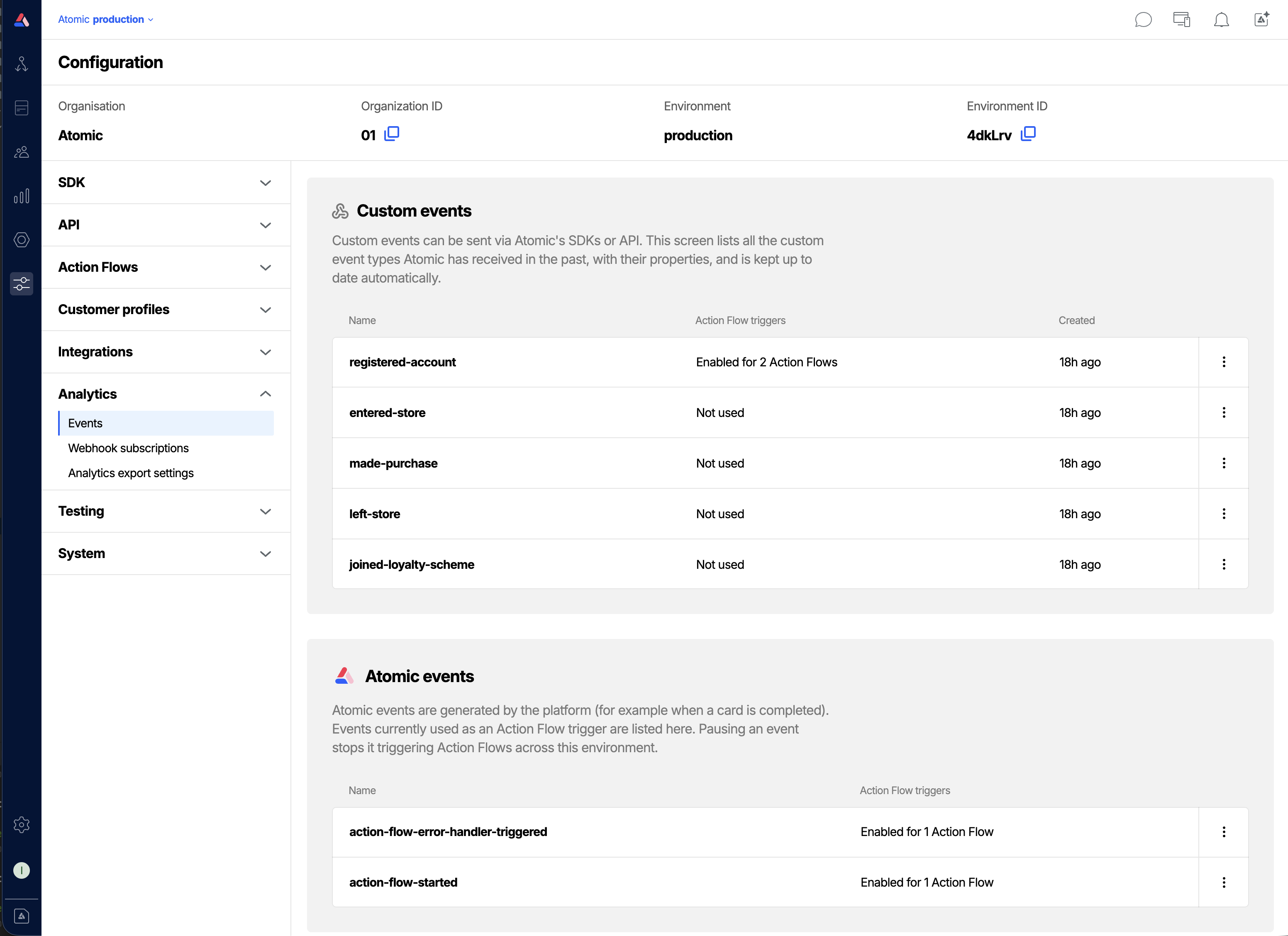
Custom events
Custom events can be sent via Atomic's SDKs or API. This section lists all the custom event types Atomic has received in the past, along with their properties, and is kept up to date automatically.
- Metadata from custom events is added to customer profiles
- Custom events can be sent to Atomic by API or in-app via the SDKs
To view the properties Atomic has seen for an event, click the event name, or open the menu (the three dots) next to it and choose View properties.
Remove properties you no longer send
Atomic builds the property list for a custom event from the events it receives, and it never drops a property on its own. If you stop sending a field, or you send one by mistake, it stays on the list and keeps appearing in the Action Flow context picker and in webhook sample payloads.
If your role has edit permission on Analytics tools, you can remove those properties.
To remove properties:
- Navigate to Configuration > Analytics > Events.
- Find the event in the Custom events section.
- Click the event name, or open its menu (the three dots) and choose Edit properties.
- Click the x next to each property you want to delete. The property is struck through to show it is marked for removal.
- Click the Remove properties button to confirm. To start again, click Cancel and reopen the window.
Atomic rebuilds the property list from the events it receives. If a removed property appears in a later event, it is added back. Removal only sticks for fields you have genuinely stopped sending, which also means an accidental removal repairs itself.
Atomic events
Atomic events are generated by the platform, for example when a card is completed. The events currently used as an Action Flow trigger are listed in the Atomic events section. If no Atomic events are being used as a trigger, this section is empty.
Action Flow triggers
Both custom events and Atomic events can be used to start Action Flows. The Action Flow triggers column tells you, at a glance, how each event is being used:
- Not used: the event does not currently trigger any Action Flows.
- Enabled for Action Flows: the event triggers the listed number of Action Flows.
- Paused for Action Flows: triggering has been paused for this event across the environment.
Pause an event's Action Flow triggers
Pausing an event stops it from triggering Action Flows across the whole environment, while still receiving the event data. This is useful when you want to stop an event from starting Action Flows temporarily without editing or unpublishing every Action Flow that uses it.
Example use-cases:
- Temporarily stop a noisy or misbehaving event from starting Action Flows while you investigate.
- Pause triggers during a maintenance window or a data migration, then resume when you are ready.
- Hold off Action Flows tied to a seasonal or campaign event without unpublishing the Action Flows.
To pause an event's triggers:
- Navigate to Configuration > Analytics > Events.
- Find the event in the Custom events or Atomic events section.
- Open the event's menu and choose Pause Action Flow triggers.
- A confirmation window lists the published and draft Action Flows this event triggers.
- Click Pause triggers to confirm.
The event will no longer start those Action Flows until you resume it.
Resume an event's Action Flow triggers
- Navigate to Configuration > Analytics > Events and find the paused event.
- Open its menu and choose Resume Action Flow triggers, or click the Paused status label.
- Confirm by clicking Resume triggers.
The event will start triggering its associated Action Flows again.
Pausing only stops an event from triggering Action Flows. Atomic still receives the event and continues to add its metadata to customer profiles. Pausing does not change or unpublish any Action Flow.
FAQs
Does pausing an event affect just one Action Flow, or all of them?
Pausing from the Events screen applies across the whole environment, so every Action Flow started by that event stops being triggered. To stop an event trigger on just one Action Flow, disable it from within that Action Flow instead. See Pausing and resuming segment and event triggers.
Will paused events still appear in analytics?
Yes. Pausing only affects whether the event starts Action Flows. The event is still received and recorded, and you can open it in the Analytics Debugger from its overflow menu.
What happens to Action Flows that are already running?
Pausing stops new Action Flows from being started by the event. Action Flow instances that have already started continue to run.