AI features
The AI features page is where you decide which of Atomic's AI capabilities your team can use in an environment, and where you can see how much of your monthly Atomic AI token allowance is being consumed. Everything is configured per environment, so you can let your team experiment freely in staging while keeping production tightly scoped.
Find it in the Workbench under Configuration > System > AI features.
Example use-cases
- Meet an internal AI policy. Turn AI features off entirely in a regulated environment while leaving them available in the environments where your team is still exploring.
- Find what's spending your allowance. See which Action Flows account for the most token usage this month, so you can tune or retire the expensive ones before you run out.
- Plan your allowance. Compare month against month to understand whether your usage is growing, and decide whether you need a larger allowance before it becomes a problem.
Turning AI features on or off
You need Edit permission on the Environment resource to change these settings. See Permissions for more information.
- In the Workbench, go to Configuration > System > AI features.
- Switch the features you want on or off:
- Ask Atomic knowledge base assistant controls Ask Atomic, the AI assistant built into the Workbench. When it's off, the Ask Atomic button and chat sidebar are hidden for everyone working in that environment.
- Atomic AI step for Action Flows controls whether the Atomic AI step can be used in Action Flows in that environment. This option is in preview for selected organizations.
- Click Update to save your changes. To back out before saving, click Discard changes.
Both features are enabled by default in every environment, so you only need to visit this page if you want to switch something off.
Tracking Atomic AI usage
The Atomic AI usage breakdown is in beta and may be subject to change. Please contact us to provide feedback.
Atomic AI usage is measured in tokens. A token is a chunk of text of roughly four characters that the underlying AI model reads or writes, and both the text going in (your system prompt and instructions) and the text coming back are made up of tokens.
Your environment has a bundled monthly token allowance for its Atomic AI steps, which resets at the start of each month. The Atomic AI usage section shows how much of that allowance has been used, broken down by the Action Flow that spent it, so you can tell at a glance which Action Flows are the heaviest consumers. See Cost for how individual steps draw down the allowance, and what happens once it runs out.
Workbench members with Admin permission on Action Flows are notified when the environment reaches 80% of its monthly allowance, and again once it has been fully used up.
You need Edit permission on the Action Flow resource to see the token usage breakdown by Action Flow, in addition to the View permission on the Environment resource. See Permissions for more information.
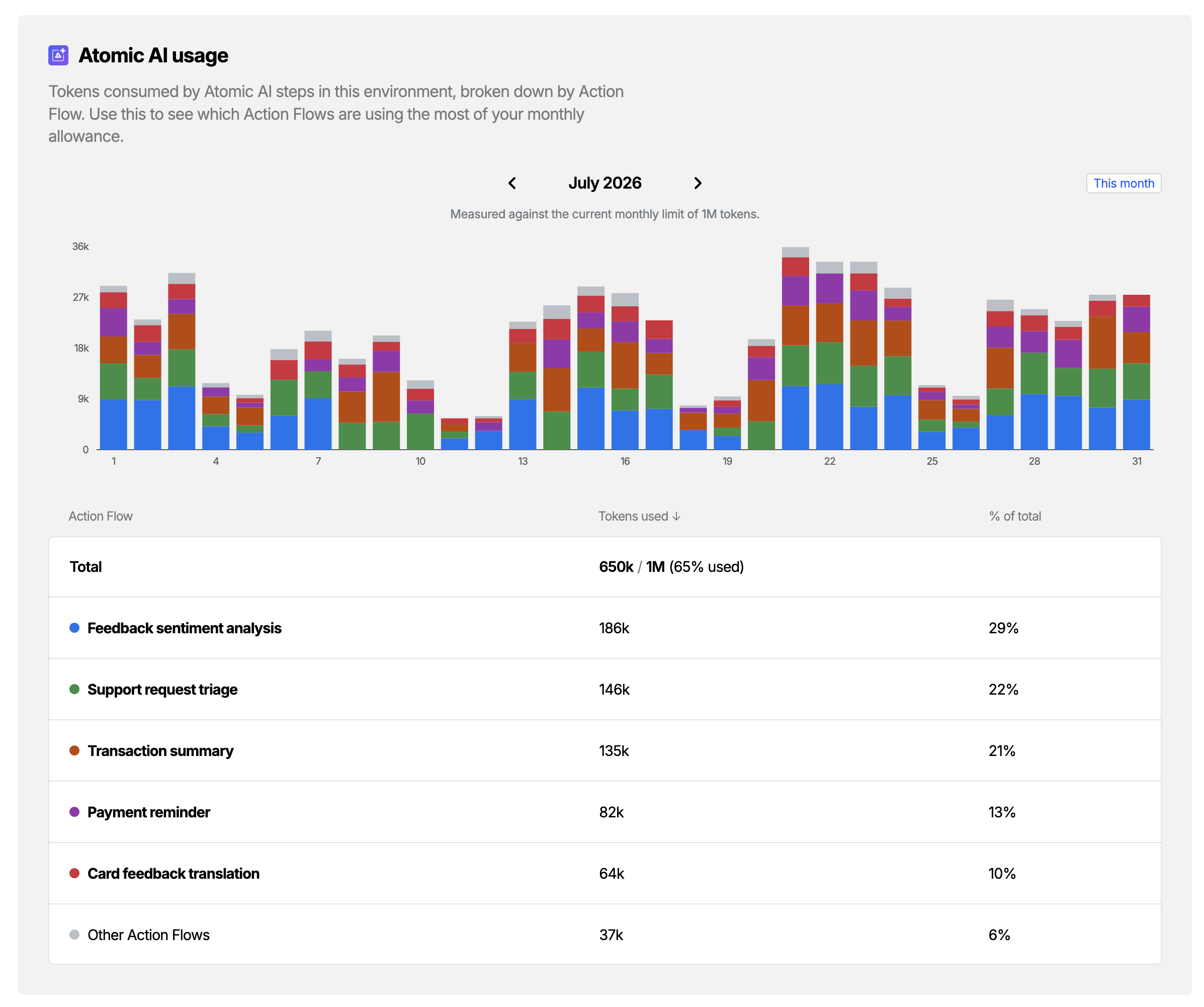
The section has three parts:
- The month picker: Use the arrows to step through months, or click the month name to jump to one.
- The daily chart: One bar per day of the month, stacked so each color is a different Action Flow. Hover over a bar to see the exact token count for each Action Flow that ran that day.
- The Action Flow breakdown: A list of every Action Flow that used tokens in the month, with the tokens it used and its share of the month's total.
The Total row shows the month's total against your allowance, along with the percentage used.
Rows labeled Other Action Flows are usage that can't be attributed to a specific Action Flow you can see. This is usually an Action Flow that has since been deleted, or one in a folder your account doesn't have access to. Tokens from those Action Flows still count toward your allowance.
Checking usage while you build
You don't have to come to Configuration to keep an eye on your allowance. When you're working on an Atomic AI step, the Monthly tokens meter shows the environment's usage against its limit, and clicking it opens a day-by-day breakdown for the environment as a whole.
FAQs
Are these settings shared across my environments?
No. AI features are configured per environment, so you can enable Ask Atomic and the Atomic AI step in your staging environment while leaving one or both switched off in your production environment until you're ready.
Does turning off the Atomic AI step break Action Flows that already use it?
No. Action Flows that are already published keep running. The toggle only prevents the step from being added to new draft Action Flows, and blocks publishing any draft that still contains one.
What happens if I run out of tokens?
Atomic AI steps stop producing output for the rest of the month, and what happens to the Action Flow depends on how each step is set up:
- If Fail the Action Flow if the AI doesn't respond is off, the step completes with no output and the Action Flow carries on. Later steps that expected the AI's output will see nothing there, so it's worth checking how your cards and steps behave in that case.
- If it's on, the Action Flow fails for that customer and any error handler you've set up will run.
The allowance is checked before each step calls the AI, so a step that's blocked doesn't consume any tokens.
Can I get a bigger token allowance?
Yes. Contact us with your Atomic AI use-cases and we can look at increasing your monthly allowance. If you're hitting the limit regularly, it's also worth checking the usage breakdown above for Action Flows spending more than you'd expect, and reviewing whether they could use a less token-intensive capability.
Related
- Ask Atomic - the AI assistant built into the Workbench
- Atomic AI step - running AI tasks inside an Action Flow
- Action Flow Step Types - control every step type available in an environment
- Permissions