Formatting dates in cards
When you show a date in a card, you choose how it reads. You can display it as a formatted date, like "March 7, 2026", or as relative time, like "2 days, 3 hours" until a deadline or "5m ago" since something happened. Relative times refresh in the card feed every minute, so a countdown keeps counting while the card sits in your customer's stream.
Example use-cases
- Payment reminders: "Your bill is due in 3 days, 4 hours", counting down to the due date passed in from your billing system.
- Limited-time offers: "Offer ends in 5h", using the compact format to fit a short headline.
- Activity updates: "Your order shipped 2 hours ago", counting up from when the event happened.
- Appointment confirmations: "Your appointment is on Tue, 7th Mar", using a fixed date format.
Where you can format a date
You can set formatting options on:
- Date variables: global variables in your Action Flow with their type set to Date. The value can come from the trigger payload, or from the fallback date you set on the variable.
- Card dates: the card's own dates in the context placeholder picker: Card published at, Card expires and Card first seen.
- Date picker answers: the value a customer chose in a date picker element on an earlier card in the Action Flow.
How to format a date variable
- Open your Action Flow and select the card template you want to edit.
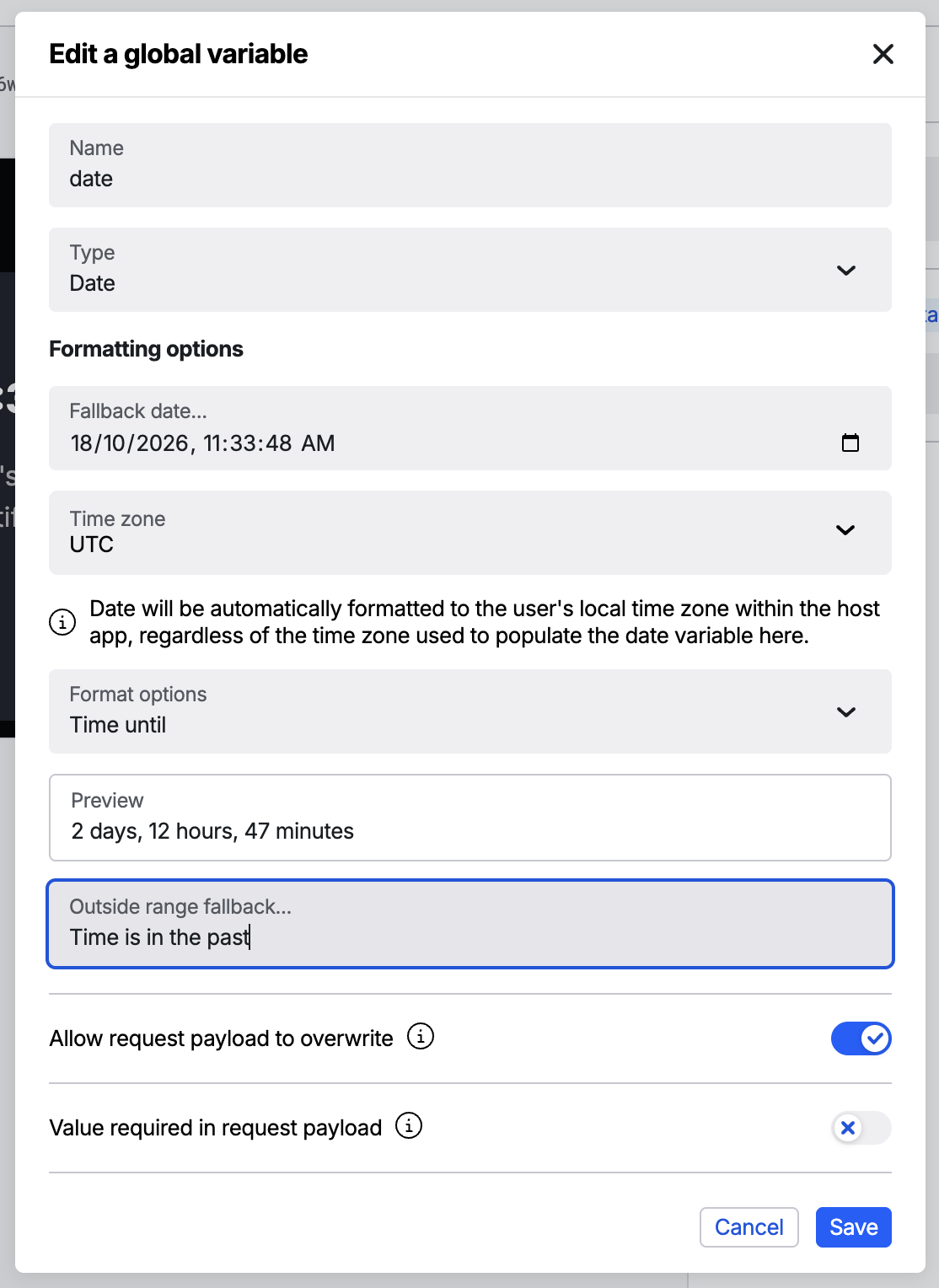
- In the Action Flow menu on the left, add a new variable or select an existing one.
- Set Type to Date.
- Under Formatting options, set a Fallback date and its Time zone. This is the date used when the trigger doesn't supply one. It isn't shown when Value required in request payload is turned on, because a value is always supplied.
- Choose a format from Format options (see Format options below).
- For a relative format, check the Preview, then optionally enter an Outside range fallback (see When the date is out of range).
- Select Save, then insert the variable into your card content using the context placeholder picker.
To format a card date or a date picker answer, insert it into your card content, then select the placeholder in the input to open its settings. The same Formatting options appear there.
Format options
| Format | Shows | Example |
|---|---|---|
| Date | The date in a format you choose | March 7, 2026 |
| Time since | Time elapsed since the date | 2 days, 12 hours, 59 minutes |
| Time since - ago | Time elapsed since the date, followed by "ago" | 2 days, 12 hours, 59 minutes ago |
| Time since compact | Elapsed time as its largest unit only | 2d |
| Time since compact - ago | Elapsed time as its largest unit, followed by "ago" | 2d ago |
| Time until | Time remaining until the date | 2 days, 12 hours, 59 minutes |
| Time until compact | Remaining time as its largest unit only | 2d |
Date
Enter a pattern in Specify format, or pick one from or choose an example format. Patterns use the date-fns format tokens, for example EEE, do MMM shows "Tue, 7th Mar" and h:mmaaa shows "9:30am".
The date is shown in the customer's local time zone in your app, whatever time zone you used when setting the fallback date.
Relative times
Relative times count in years, months, days, hours and minutes. Seconds are never shown, and anything under a minute reads as "just now".
The compact formats keep only the largest unit, rounded down, using yr, mo, d, h and m. For example, 2 days and 12 hours reads as "2d", and 45 minutes reads as "45m".
When the date is out of range
A relative time can only count in one direction:
- Time since has nothing to show while the date is still in the future.
- Time until has nothing to show once the date has passed.
In these cases the card shows the Outside range fallback instead, for example "Offer ended" for a countdown that has run out. If you leave it empty, nothing is shown in place of the placeholder.
How relative times stay up to date
Atomic refreshes cards that contain relative times every minute, so the text keeps pace while the card is in the feed.
Refreshing only works when the SDK is in WebSocket mode, which is the default. In HTTP polling mode, the relative time is worked out when the card is fetched and won't change until the next fetch.
FAQs
Why does my countdown show my fallback text instead of a time?
The date has passed, so there's no time left to count down to. Check the date supplied by your trigger, or use the Outside range fallback to show a message like "Offer ended".
Why is the placeholder blank?
The date is out of range for the format (see When the date is out of range) and no Outside range fallback is set.
Can a compact format show more than one unit, like "2d 4h"?
No. Compact formats show only the largest unit. Use Time since or Time until to show every unit.
Can I show "in" before a countdown, like "in 2 days"?
The format doesn't add any words before the time. Write the word into your card content next to the placeholder, for example "Ends in" followed by the placeholder.
What format should a date in the trigger payload use?
Use ISO 8601, for example 2026-03-07T09:30:00Z.